Why Your iPhone 17 Battery Is Draining Fast (Fixes That Work)
Discover key reasons why your iPhone 17 battery drains fast and effective fixes to enhance your device’s battery life on the go.

Why Your iPhone 17 Battery Is Draining Fast
Why Your iPhone 17 Battery Is Draining Fast: In the United States, many iPhone 17 users report their batteries draining faster than expected. Apple has increased battery capacity over time, from 2815 mAh in the iPhone 12 to 3692 mAh in the iPhone 17. Yet, the battery life can feel short. This raises the question, why does the iPhone 17 battery drain fast even when nothing seems different?
Modern features can drain the battery more quickly. Brighter screens, higher refresh rates, AI tasks, and background syncing all increase power consumption. These causes often show up as issues like a warm phone, sudden drops in standby, or a quick battery drop on cellular signal. Best iPhone 17 Cases Under $ 50.
It’s not always permanent. After big iOS updates or new setups, the iPhone may run extra tasks. These tasks can take a few days to a week to settle down, depending on the size of your photo library. For a quick look at common causes, check out this iPhone 17 battery drain guide.
This article offers practical tips beyond general advice. It looks at what Settings > Battery shows, iOS Insights and Suggestions, and how signal strength affects battery life. It also talks about app behavior and when it might be due to aging hardware.
If signs point to wear, such as a low Maximum Capacity reading or unexpected shutdowns, replacing the battery might be cheaper than buying a new phone. For those considering this, battery replacement guidance explains what to look for and why certified service is safer.
Key Takeaways
- Even with a larger battery, the iPhone 17 can drain quickly due to higher power demands.
- Common iPhone 17 battery drain issues often come from screen tech, AI processing, and background syncing.
- After iOS updates or a new setup, temporary drain and heat can be normal for several days.
- Settings > Battery is the fastest way to spot patterns, apps, and standby drain.
- Weak cellular signal and constant background activity can be major causes of iPhone 17 battery Life: How long does the battery really last?
- If battery health trends toward 80% capacity, fast drain may be a hardware aging issue, not a user mistake.
Understanding Battery Drain on the iPhone 17
Battery loss isn’t always a bad sign. Any iPhone uses power when it’s on, even if it’s just sitting. The rate depends on alerts, background tasks, and cellular signal strength.
If the service is weak, the phone has to work harder to stay connected. This can make the battery percentage drop faster. Knowing this helps when trying to figure out why the battery drains.
Apple provides a clear way to check patterns. In Settings > Battery, Daily Usage compares today with the last 7 days. It lists the top apps and system items using power. The labels help identify causes without guessing.
- Background Activity can signal apps working when the screen is off.
- Notifications can show frequent wake-ups from alerts.
- No Mobile Coverage and Low Signal often explain sudden drops away from Wi‑Fi.
- Connected to Charger helps spot usage that happened while it was plugged in.
Common Reasons for Battery Drain
Many common battery-drain issues occur after an iOS update or a restore. The phone might run “housekeeping” tasks in the background. This includes Spotlight indexing, downloading fresh assets, updating apps, or scanning the photo library. iPhone battery capacity explained.
Newer devices might also see occasional on-device model downloads. These support Apple Intelligence features. Heavy “Home & Lock Screen” usage can show up in Battery settings, even if nothing looks unusual.
“A single battery graph rarely tells the whole story; patterns across a few days are more reliable.”
Background App Activity
When troubleshooting iPhone 17 battery drain, app behavior is key. An app that crashes or misbehaves can keep trying tasks. This raises power use and can make the phone feel less stable when the battery is low.
Basic steps can help reduce common software-related battery drain issues. Charge first, restart the iPhone, and update iOS and apps. If one app keeps showing up under Battery, they may need to reinstall it or review app-specific settings. App troubleshooting steps can help determine whether the drain is due to a glitch, a stuck process, or repeated background work.
iOS Settings Impacting Battery Life
When your phone’s battery drains quickly, it’s often due to hidden iOS settings. These can include repeated screen wake-ups, constant sensor use, or nonstop data checks. Making a few simple changes can help fix this issue without changing how you use your phone.
Location Services and Battery Use
Location Services can be a big battery drain because GPS, Wi‑Fi scanning, and Bluetooth signals stay active. If an app is set to Always, it can keep sending location pings even when it’s not on screen. This is a common reason for battery drain.
To start fixing this, check your app permissions. Go to Settings > Privacy & Security > Location Services > Find My > set it to While Using. If it’s stuck, try switching it to Never, then back to While Using. Restart your iPhone and watch your battery for 24 hours. Constant tracking can increase location activity and make it harder to pinpoint the cause of battery drain.
Other location changes that often help:
- Set non-essential apps to While Using instead of Always.
- Turn off Precise Location for apps that don’t need it.
- Review Background App Refresh and location use together using guidance like this iPhone settings guide.
Push Notifications and Fetch Settings
Notifications can drain power because each alert wakes the screen and checks the network. In Battery details, iOS may label “Notifications” as a source of drain. These points grab your attention.
To reduce wake-ups, trim non-essential push alerts and use scheduled summaries. Constant email and app data checks can also drain standby time. Switching some accounts to fetch every 30 to 60 minutes can help fix battery drain while keeping updates predictable.
Two small changes often work well together:
- Enable Low Power Mode in Settings > Battery to reduce background checks and mail fetch.
- Remove lock screen widgets that refresh often, using tips from this battery-saving breakdown.
Applications Consuming Excessive Battery
Some battery drain seems like a hardware problem, but it’s often due to app behavior. If your iPhone 17 battery drains fast, check what apps are running. Look at when and how often they wake your phone. These tips can help improve your iPhone 17’s battery life without changing your daily habits.
Start with Apple’s Battery screen to see patterns, not guesses. In Settings > Battery, the Daily Usage chart compares today with the last seven days. It highlights the top three apps under the App and System Activity category. For more, follow Apple’s Battery usage guide.
Identifying Power-Hungry Apps
Look for apps that use a lot of power but don’t match screen time. High battery use but low active minutes often means background processing. This includes syncing, location tracking, music playback, or analytics calls.
Tapping an app shows a chart comparing today’s usage with the last seven days. This helps spot new spikes. The details also show Background Activity and Notifications, common causes of hidden drain.
Community reports often mention third-party apps that stay busy after the screen turns off. Meta apps like Instagram and WhatsApp are often cited for extended background usage. Even when not actively used, battery use keeps climbing.
- Background Activity: the app kept running in the background, which can add up over hours.
- Notifications: frequent alerts wake the device and refresh content more often than expected.
- No Mobile Coverage or Low Signal: the phone works harder searching for service, which can amplify app drain.
Managing App Background Refresh
Wait until the 3–5 day post-setup window passes, then compare results. If removing a suspected app for a day or two normalizes drain, it’s a strong clue. This simple trial is a reliable way to save battery because it isolates the variable.
Use Low Power Mode during diagnosis. It reduces Background App Refresh, limits Mail fetch, pauses “Hey Siri,” and cuts some visual effects. This helps reveal if background activity is the problem. Also, check Wi‑Fi versus cellular use and turn on 5G Auto when available. These techniques focus on real-world usage, not one-off tweaks.
Connectivity Features Affecting Battery
Wireless radios keep working, even when your phone seems to be doing nothing. If they’re always searching for a better signal, your battery will drain quickly. To fix this, it’s important to understand how your iPhone stays connected at all times.
Bluetooth and Wi-Fi Settings
Apple says Wi-Fi uses less power than cellular data, which is good for streaming and video calls. To save battery, keep Wi-Fi on and connect to a trusted network in Settings > Wi-Fi.
Signal strength is key. If your iPhone shows “No Mobile Coverage” or “Low Signal” in Battery details, it’s scanning for service. This can drain your battery. Resetting network connections can help; check out this guide on network resets and standby drain for more info.
- Turn off Bluetooth when you’re not using accessories to avoid constant searching.
- On 5G plans, set Voice & Data to 5G Auto (Smart Data) to switch to LTE when 5G isn’t better.
- If a network is unstable, “Forget This Network” and rejoin it to refresh settings.
Airplane Mode: When to Use It
Airplane Mode is great for areas with weak coverage, like parking garages or rural roads. It stops your phone from constantly scanning for cellular signals, saving battery life.
It’s also useful when your phone gets warm and runs out of charge while in your pocket. Enable Airplane Mode, then turn Wi-Fi back on if you need internet. This keeps your connection steady without extra radio chatter.
Screen Settings and Battery Performance
The screen on the iPhone 17 can drain a lot of power every day. Bright screens, always-on, and smooth animations drain the battery. Apple suggests a few display tweaks in Settings to help save battery.
Check Settings > Battery for Battery Suggestions. If “Enable auto-brightness” appears, it means the phone is adjusting brightness without the light sensor. If “Enable auto-lock” appears, the screen may stay on while the device sits idle.
Brightness Levels and Battery Life
Apple’s “High Brightness” warning is serious. High brightness uses a lot of energy, like during long scrolling or video playback. Keeping the room brightness below full daylight is a good tip to save battery power.
- Auto-brightness helps the iPhone adjust in real time, so it does not overlight the display indoors.
- Auto-lock cuts wasted minutes when the phone is set down, which adds up over a day.
- Reducing Motion and limiting flashy transitions can lower GPU work and smooth out drain.
On ProMotion-capable models, some apps can keep refresh rates higher than needed. Limiting high-refresh behavior and reducing animations makes the phone fast while using less power. This helps save battery during heavy screen time.
For a quick overview of battery-friendly habits, review Optimized Battery Charging. Apply the same “small changes, steady gains” mindset to screen settings.
Dark Mode vs. Light Mode
Dark Mode is great for those who spend hours in front of screens. Darker interfaces use less energy, which is beneficial at higher brightness levels. Light Mode works well too, but it uses more energy when the slider is high.
Use Dark Mode as part of a broader plan to save battery life. The biggest gains come from Apple’s suggested tweaks—brightness, auto-brightness, and auto-lock. Also, avoid refresh-heavy visuals that run hotter than they need to.
Software Updates and Battery Life
An iPhone 17 running on the latest iOS stays cooler and more stable all day. This is key because many battery-drain issues stem from software issues, not just heavy use. Keeping iOS updated also brings new power tools and clearer battery info, making it easier to find the problem.
Importance of Keeping iOS Up to Date
Apple links battery features to newer iOS versions. You need iOS 26 or later to see the Daily Usage chart and use Adaptive Power. These tools help fix battery drain issues more accurately.
Newer versions also give more detailed Battery screen info. This supports smarter changes, not just random ones. Apple also added Battery Insights in iOS 18 and later. These insights highlight background tasks that consume a lot of battery and generate a lot of heat.
Potential Bugs in Older Software
Older software can have bugs that affect power use and standby time. That’s why updates like 26.0.1, 26.1, and 26.2 often feel smoother. Apple releases iOS in stages—developer beta, public beta, then the official version. Early versions might be less efficient before updates.
After a big update, a short battery drain is normal. Apple Support and users agree: background setup can increase battery and heat for 3–5 days, sometimes up to a week. A big photo library can make it take longer because the phone re-indexes Search, downloads system assets, and refreshes apps in the background.
- In Settings > Battery, they may see Insights such as “Ongoing iOS Update” or “Ongoing Device Setup” as tasks finish.
- During that time, battery drain issues might seem worse at night or during light use. This is because the phone is doing system work.
- Once those entries go away, fixing battery drain issues becomes easier. This is because usage data becomes more stable.
Factors Related to Hardware
Not every fast drop in battery percentage comes from settings or apps. Some common iPhone 17 battery drain issues start with the parts inside the phone. When hardware is under stress, battery life can shrink even if daily habits stay the same.
Battery Age and Performance
Apple notes that rechargeable batteries have a limited lifespan. As the battery ages, its capacity can fade, so it holds less charge than it did when new. This is one of the most overlooked causes of battery drain.
They can check the battery condition in Settings by going to Battery, then Battery Health, on iPhone 15 and later. On older models, it may appear as Battery Health & Charging. If “Service” shows next to Battery Health, Apple advises considering a battery replacement to restore capacity and performance.
Thermal Issues and Their Impact
Heat can drain power quickly in the moment and accelerate long-term wear. Heavy gaming, long video calls, and intense multitasking can warm the device and lead to common iPhone 17 battery drain issues, such as sudden drops and slower response times.
Charging can add heat, too, especially with unstable or low-quality power adapters and pads. Qi2-certified and MagSafe-aligned chargers tend to deliver steadier power, which can reduce heat from inefficient charging—another iPhone 17 battery drain cause that is easy to miss.
Right after setup, the phone may feel warmer while it indexes photos, downloads data, and finishes background tasks. During that period, some UI lag and faster drain can show up, then ease once the workload settles.
- Warm to the touch during charging or heavy use can signal extra strain.
- The battery drops faster when the phone is hot, even at the same brightness.
- Slower performance can appear when heat management kicks in.
Tips for Maximizing Battery Life
The iPhone 17’s battery life varies from 3% to 30% daily. This depends on signal strength, screen time, and settings. The best ways to save battery power involve reducing background activity and keeping the phone calm on weak networks.
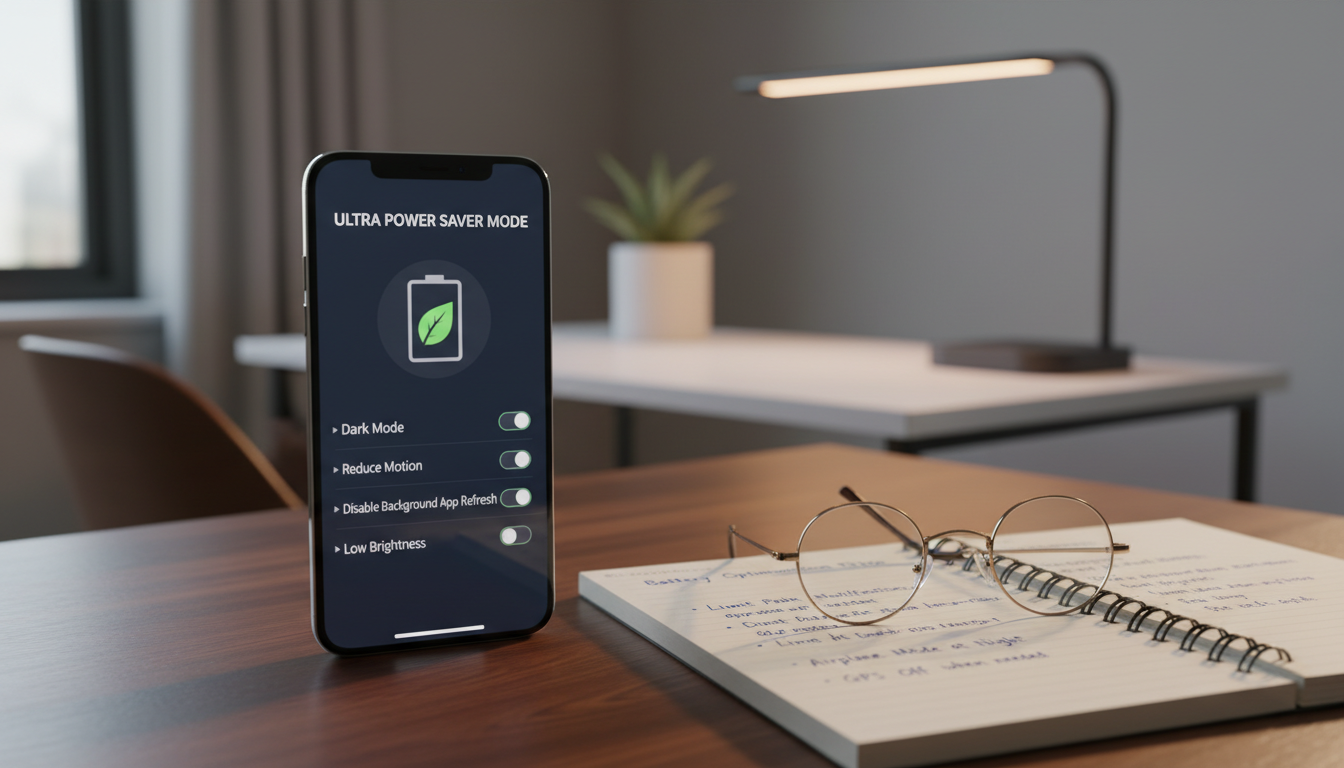
It’s also wise to plan ahead. A portable battery pack can help on long days, for travel, navigation, or camera use. Many choose 10,000 mAh packs for daily use and 20,000 mAh for longer trips. The Belkin Boost Charge Plus 10K is a popular choice, with a two-year warranty.
Battery-Saving Mode Features
Low Power Mode is a simple way to save battery on busy days. Apple says it cuts power use by limiting Mail fetch, “Hey Siri,” and Background App Refresh. It also reduces visual effects.
To turn it on, go to Settings > Battery > Power Mode. You can also add it to Control Center for easy access. It turns off when the phone’s charge exceeds 80%, making it a great short-term fix.
On iOS 26 and later, Adaptive Power adjusts performance for high-use days. It can also start Low Power Mode at 20%. This makes it easier to save battery when the day gets busy.
Heavy syncing can drain the battery. After updates or restores, iCloud and Photos may sync in the background. Charging on Wi‑Fi while syncing keeps the battery steady. For those who take a lot of photos, iPhone camera tips can also help, as camera use can quickly drain power.
Charging Habits that Protect Battery
Charging overnight is common because it lets the phone run tasks in the background. With Optimized Battery Charging, the iPhone avoids overcharging. It tops off the battery just before morning.
Understanding charge cycles is also key. A cycle count is based on total energy used, not how many times you plug in. This is important for long-term battery health.
- Use Wi‑Fi when possible to reduce cellular radio work in weak areas.
- Lower brightness and shorten Auto-Lock to cut screen drain.
- Carry the right pack: 5,000 mAh for a single charge, 10,000–20,000 mAh for longer days.
Monitoring Battery Usage on iPhone 17
When battery life seems off, checking daily reports is a quick fix. They can open Settings > Battery to see daily usage and suggestions. On iOS 26 and later, the chart helps spot changes and may show Adaptive Power.
Accessing Battery Health Information
For a deeper look, they can check Settings > Battery > Battery Health. If the phone gets hot while charging, try charging it via both wired and wireless. Also, avoid leaving it on a pad at night. Knowing about Qi and MagSafe charging speeds helps understand the role of heat.
Understanding Usage Statistics
Daily Usage compares today’s battery usage with last week’s. It flags if it’s more, less, or the same. Tapping View All Battery Usage shows daily bars and lets them dive into a specific day.
The App and System Activity area shows the top battery users. Tapping an app shows a chart comparing today to the last week.
- Background Activity means the app worked while off-screen, like audio or location tracking.
- Notifications show apps that wake the screen or run tasks.
- No Mobile Coverage and Low Signal mean the modem is working hard to stay connected.
- Connected to Charger explains why the percentage stayed steady while the phone was active.
These labels help them find the next step to fix the battery drain. It might be changing app permissions, reducing notifications, or avoiding weak-signal areas.
Resetting Settings for Optimal Performance
When your iPhone 17 battery drains fast, and Settings > Battery doesn’t show the cause, resetting is a good idea. It’s also useful when battery drain persists after an update. This is because iOS might be indexing files, updating apps, and refreshing photos, as explained in this Apple Support Community thread.
Resetting settings targets misbehaving configurations—like network handshakes, location rules, and notification patterns—without trying to guess which toggle caused the problem.
How to Reset All Settings
Resetting settings is a step up, not the first thing to do. Before making big changes, many try a force restart. It’s low risk and can fix a stuck process.
If battery life is not right, Reset All Settings is the next step. It keeps personal data but resets preferences.
- They open Settings, then go to General.
- They tap Transfer or Reset iPhone, then Reset.
- They choose Reset All Settings and confirm.
After resetting, they should watch battery charts for a full day. This is a practical way to fix hidden issues that can drain the battery.
Precautions Before Resetting
They should prepare before taking deeper steps. If they think it’s a software problem, they might go back to the computer. This way, a fresh iCloud backup won’t erase important data.
- They back up the iPhone to a Mac or PC and archive that backup.
- They can test battery drain by setting up the phone as new before reinstalling third-party apps.
- If the drain appears immediately before restoring apps and data, it may indicate a device-level issue rather than a third-party app.
This approach helps find the cause of battery drain with fewer guesses. It also supports battery-saving techniques by confirming whether iOS behaves normally after checking settings and installations.
When to Seek Professional Help
Some battery drops are normal as a phone learns new habits. But if the drop is sudden, steady, and hard to explain, it’s time to look deeper. They might find causes for the iPhone 17 battery drain that aren’t just about settings.
Signs of Battery Damage or Malfunction
A clear warning sign is Battery Health showing Service. Or if the drain stays high even after the usual updates. If they’ve tried restarting, updating iOS, and testing without third-party apps, they’ve narrowed the issue.
They might also see system alerts that suggest a bigger problem. Some users receive a message stating that the battery couldn’t be authenticated. This can seem like a firmware issue, even if it clears after a reset.
- Service appears in Battery Health
- Fast drain continues after updates and basic troubleshooting
- Unexpected shutdowns, heat during light use, or swelling
- Warnings about battery authentication or parts
Apple’s Support and Repair Options
When the battery drain seems to be a hardware issue, it’s best to get help from Apple. They can book a visit to the Apple Store Genius Bar or an Apple Authorized Service Provider. Community advice often recommends using Apple or an authorized repair.
Apple Support might ask for proof of the pattern. They can bring screenshots from Settings > Battery showing the last 24 hours graph and the top battery-using apps. This makes it easier to discuss how to fix the issue without guessing.
If the phone is within the return window, usually 14 days in the United States, an exchange might be a good option. This can be helpful if the drain is severe and keeps happening.
Why Your iPhone 17 Battery Is Draining Fast Conclusion:
Enjoying Your iPhone 17 Longer
Even with a bigger battery, the iPhone 17 can drain fast. New features and constant updates can use up a lot of power. The best way to make your battery last longer is to use smart settings and check them regularly.
Summary of Key Fixes
Start by going to Settings > Battery. Here, you’ll find tips for saving battery life. After a big iOS update, your battery might drain more for a few days.
Lowering your screen brightness and turning on Auto-Brightness can help. Shortening Auto-Lock time also saves battery. Location Services and alerts can drain your battery quickly, so turn them off when not needed.
Limiting Background App Refresh and removing power-hungry apps helps too. Using Wi‑Fi instead of cellular data saves battery. Airplane Mode stops your iPhone from searching for signals, saving power. Low Power Mode and Adaptive Power on iOS 26+ are also great tips.
Staying Informed About Battery Health
Keeping an eye on Battery Health is key. Watch for any “Service” status to avoid damage. Many small charges add up over time, affecting your battery’s life.
Charging your phone in a cool place helps prevent damage. Regularly checking your battery health and following these tips can extend your iPhone 17’s battery life. This way, you can enjoy your phone for longer without worrying about running out of power.