How to Contact Discord Support When You Can’t Log In (And No Email Arrives)
Struggling to log into Discord and waiting for an email? Find out how to contact Discord Support for efficient assistance.
Contact Discord Support
Contact Discord Support: If Discord forces you to reset your password but you never get the reset email, the only way to contact Discord is to create a separate Discord Support account at support.discord.com and submit a ticket through the Help Center. If you cannot receive any email from Discord — including the Support account activation email — your account cannot be recovered, and you will need to create a new Discord account.
Most people get stuck because Discord no longer accepts support requests from anonymous users, and the form misleadingly tells you to “sign in” before submitting a ticket. What Discord does not explain is that this sign-in uses a separate Support Center account, not your locked Discord app account. You can create this support account with any email address you currently have access to, activate it, and then submit a ticket about the missing password reset email. But if you cannot receive any message from Discord — including the support activation email — there is no verification path left, and the account cannot be recovered.
Future Technology, The best over ear Headphones on a budget.
When you try to log in at https://discord.com/login, but no email is displayed. The screen keeps looping. Even if the phone code works, you can’t get in. This guide will help you reach Discord support in the U.S. when you can’t log in.
It’s based on a real situation. A user got stuck at the “Something’s going on here” gate. They were sent to https://discord.com/channels/@me and checked their email. It said their address was already registered.
Even after resetting their password by SMS and trying on desktop and iOS, they got the same message. Discord Support suggested trying incognito mode, phone-first login, and the forgot password option. But the loop continued. The problem was solved only after asking for a phone number reset and an account verification review.
It also talks about why VOIP services like Google Voice and TextNow won’t work for new sign-ups. Discord says to use a valid mobile phone number, not a VOIP or landline number. In the end, Discord removed the old number, the user made a new account with a standard email, added a carrier-backed U.S. mobile line, and got back in. If you need Discord support contact info and exact wording, this section prepares you for the step-by-step guide.
Step 1 – Quick Checklist: Why You’re Not Getting the Discord Reset Email
Before you assume your account is gone forever, run through this fast checklist. A lot of people get stuck on something small and never realize it.
1. Check every folder and filter in your email
Don’t just glance at your inbox and spam folder.
- Open Spam/Junk, Promotions, Updates, Other, and any custom folders you use.
- Use your email search box and search for:
- Discord, no-reply, or support@discord.com.
- If you use Gmail, also click “All Mail” and scroll.
Sometimes the reset email is there, just buried or auto-sorted.
2. Make sure you’re using the exact email tied to your Discord account
Double-check you’re typing the same email you originally used for Discord.
- If you have multiple emails (Gmail, Yahoo, work, school), try each one.
- If Discord says something like “Email does not exist,” it usually means you’re entering an email that was never attached to a Discord account.
If you’re using the wrong email, no reset email will ever arrive.
3. Whitelist Discord’s emails and try again
Your provider might be silently filtering Discord.
- Add Discord-related addresses (such as support@discord.com and noreply/notification-style addresses from Discord) to your contacts or safe senders list.
- After whitelisting, request the reset email again and wait a few minutes.
4. Try requesting the reset from a different device and network
Sometimes security or rate-limiting flags your device or IP.
- If you tried it in the mobile app, try it in a desktop browser.
- If you tried on your home Wi-Fi, try on mobile data or a different network.
- Use a clean browser window or open it in incognito/private mode, then request the reset email again.
This rules out browser extensions, cache issues, and network blocks.
5. Give it time and avoid spamming the reset button
Discord can rate-limit or temporarily block repeated reset requests.
- If you clicked “Reset Password” repeatedly, wait at least 30–60 minutes before trying again.
- In some edge cases, it may take the system longer to let a new email through.
If you’ve tried all of the above and you still never get a single email from Discord to that address, it’s time to move on to the next part of the article:
creating a separate Discord Support account and filing a ticket through the Help Center.
Step 2 – Create a Discord Support Account and Submit a Ticket
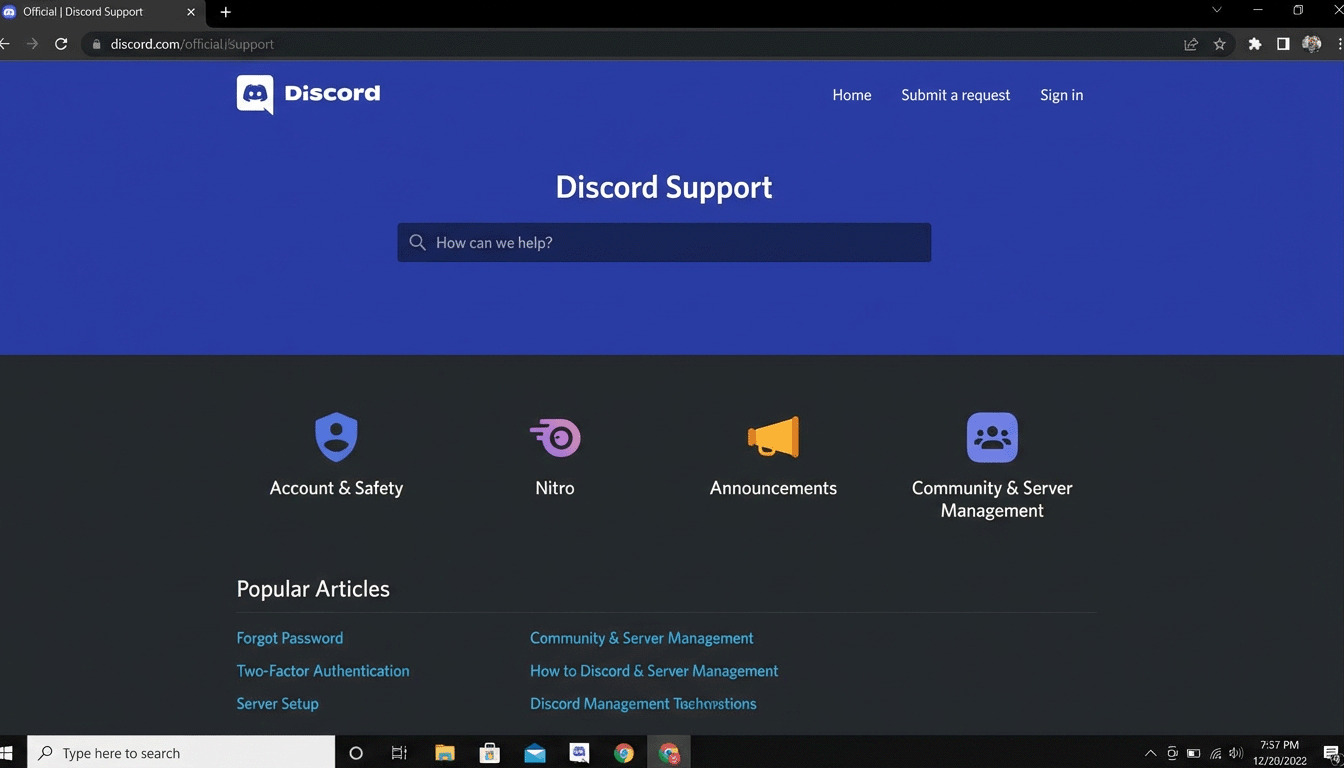
Once you’ve confirmed the reset email truly isn’t coming, the next step is to contact Discord through their Help Center. The confusing part is that you can’t submit a ticket as a guest anymore – you have to create a separate Discord Support account, which is not the same as your Discord app login.
2.1 – Go to the Discord Help Center
- Open a browser and go to: https://support.discord.com/
- In the top-right corner, click Sign in.
You’ll see a “Sign in to Discord Support” screen asking for an email and password. This is where most people get stuck, thinking they need to log in to their Discord app account. You don’t.
2.2 – Click “Sign up” (Do NOT try to log in with your broken Discord account)
On that same screen, look for:
New to Discord Support? Sign up
Click Sign up.
Here, you’re creating a Support Center account only. It:
- Does not log you into the Discord app
- Exists only so you can submit and track support tickets
Use any email address you currently have access to. It can be:
- The same email you believe is tied to your Discord account, or
- A different email, if the original one doesn’t receive Discord mail
2.3 – Activate your Support account via email
Discord will send you an activation email for the Support account.
- Open the inbox for the email you used to sign up.
- Look for an email from Discord Support with an activation link.
- Click the link and set a password for your Support account.
If you never receive this activation email, either, even after checking spam and filters, that’s a bad sign. It means Discord emails are not getting to you at all – we’ll talk about what that means in the “Reality Check” section.
If the activation email does arrive, you’re in good shape.
2.4 – Submit your ticket through the Help Center
Once your Support account is active and you’re logged into the Help Center:
- Click Submit a request (usually at the top or in the menu).
- Choose the category closest to your issue (e.g., Help & Support or Account & Login).
- Fill out the form with as much detail as possible. Make sure to include:
- The email address tied to your locked Discord account (even if you signed up for Support with a different email)
- A short, clear subject line like:
“Forced password reset – not receiving reset email”
- A detailed description, including:
- That Discord forced a password reset when you tried to log in
- That you have requested the reset email multiple times
- That no reset email has arrived (and you checked spam, filters, and tried other devices/networks)
- The approximate date/time when this started
- Whether you still have full access to the email address on the account
- Attach screenshots if you can:
- The screen where Discord demands a password reset
- Any error messages you see
- Submit the ticket and keep an eye on the inbox used for your Support account – that’s where replies will go.
This is the only official support channel Discord offers for this kind of issue at the moment.
Next in your article, you’ll want a Step 3 section that explains:
- What Discord Support can realistically do
- What happens if you still can’t get any email from them
- When it’s time to stop trying and accept that you need to create a new account
Step 3 – What Discord Support Can and Cannot Do (Reality Check)
Once you submit your ticket, it’s essential to understand what Discord Support is actually able to fix—and what they cannot recover under any circumstance. Most users waste days hoping for an outcome that isn’t possible under Discord’s current policies.
3.1 – What Discord Support CAN do
If you successfully submitted a ticket through a Support account and Discord can verify you:
- They can manually send you another password reset link
- They can investigate whether your email provider is blocking Discord
- They can restore access if your account was incorrectly flagged
- They can help you resolve specific login or verification errors
This requires one thing:
They must be able to reach you by email.
If Discord can email you and you can email them back, there is a path to recovery.
3.2 – What Discord Support CANNOT do
Here are the hard limits—these are the scenarios where recovery becomes impossible:
1. They cannot give you access if you cannot receive ANY email from Discord.
If your email provider blocks Discord or your inbox is unreachable, Discord has no way to verify you. Without verification, your account cannot be returned to you.
2. They cannot change the email on your account unless you can prove ownership.
If you’ve lost access to the email tied to your Discord account, Discord Support will not swap the email for you just because you ask. They require email-based validation.
3. They cannot bypass the password reset flow.
Support does not manually override the forced password reset requirement. They rely on the same reset system you do.
4. They cannot recover accounts with completely inaccessible emails.
If the email on your Discord account is permanently gone (deleted, hacked, lost access, school/work email closed), the account is effectively locked forever.
These limitations are why so many people ultimately have to start over.
3.3 – When it’s time to stop trying and create a new account
If all of the following are true:
- You never received the password reset email
- You never received the Support account activation email
- You never receive replies from Discord Support
- You cannot get Discord emails to any address you control
…then you have hit the absolute wall. There is no further verification method, no appeal path, and no way to prove identity without receiving their emails.
In this case, the only remaining solution is:
Create a new Discord account.
It’s not what anyone wants to hear, but it is the honest outcome Discord’s system leads to when email delivery is completely broken.
3.4 – The only alternative contact method (limited usefulness)
You can message @discord_support on X (Twitter), but:
- They cannot handle account verification
- They cannot restore accounts
- They cannot reset emails manually
- They will tell you to submit a ticket anyway
This channel is only helpful to confirm whether:
- Discord email delivery is down
- A known outage is affecting login/reset systems
- Your ticket was received
It is not a recovery path.
Step 4 – How to Prevent This From Ever Happening Again
If you eventually recover your Discord account—or create a new one—take a few minutes to secure it properly. Most lockouts happen because people rely on a single email address and never set up backup verification. These quick steps will permanently protect your account.
4.1 – Enable Two-Factor Authentication (2FA) Immediately
2FA is the strongest layer of protection you can add. It prevents unauthorized access and allows you to authenticate even if someone ever tries to reset or compromise your password.
To enable 2FA:
- Open Discord
- Go to User Settings → My Account
- Click Enable Two-Factor Auth
- Use an authenticator app (Google Authenticator, Authy, etc.)
Do NOT skip this step — it’s the #1 way people avoid permanent lockouts.
4.2 – Save Your Backup Codes Somewhere Offline
When you turn on 2FA, Discord gives you a set of backup codes. These codes can log you into your account even if you:
- Don’t have your phone
- Lost access to your authenticator app
- Changed devices
- Got locked out of your email
Print them, save them in a password manager, screenshot them, and store them securely — don’t lose them.
Backup codes are your emergency key. Without them, Discord cannot bypass verification later.
4.3 – Add a Phone Number for Secondary Verification
Discord lets you attach a phone number to your account. This gives you:
- Another login option
- An alternative verification method
- A safety net if your email fails
It is not a complete recovery method on its own, but it strengthens your account and gives Discord more ways to verify you.
4.4 – Make Sure You Always Have Access to Your Email Account
This sounds obvious, but it’s where most Discord lockouts begin.
Do this:
- Update your recovery phone/email on your leading email service (Gmail, Yahoo, Outlook, etc.)
- Make sure your inbox isn’t full.
- Log in to your email periodically to keep it active (some providers deactivate unused accounts)
- Avoid using old school or work emails that may get shut down
If you lose access to the email tied to your Discord account, recovery becomes nearly impossible.
4.5 – Whitelist Discord Emails So They Never Go Missing Again
Add these to your email contacts or safe list:
- support@discord.com
- Any no-reply or notification emails you’ve received from Discord
This prevents password resets and verification emails from being silently filtered or blocked.
4.6 – Keep One Extra Email Address as a Backup for Support
Because Discord Support uses a separate Help Center account, it’s smart to maintain a second email you know receives Discord mail. You can use that backup email to:
- Contact Discord Support
- File tickets
- Communicate when your primary address isn’t receiving mail
This one tip alone can prevent total account loss if your main email breaks.
4.7 – Test Discord Email Delivery Once in a While
Every few months:
- Change your password (optional)
- Request a login verification email
- Make sure Discord still reaches your inbox
This takes 30 seconds and can save you from discovering too late that your provider suddenly started blocking Discord messages.
Contact Discord Support Final Thoughts
Most Discord lockouts happen because of:
- No 2FA
- No backup codes
- Relying on a single email
- Not knowing that Support accounts are separate
- An outdated or inactive email provider
Once you secure your account with 2FA, backup codes, and a reachable email, your chances of ever losing access again drop to nearly zero.
Use incognito, correct the login portal, and phone-number-based reset
Start in a private window and open the official login page. This clears out old logins and cookies. If they forgot their password, they can reset it via phone.
This method confirms they own the account. It also prepares clean data for later support requests.
Complete the SMS code flow and reattempt login on desktop and mobile
After getting the text code, enter it once and set a new password. Try logging in on both desktop and mobile. This checks if the issue is fixed everywhere.
If they get the prompt again, note the time and details. This helps them get precise help from Discord.
Avoid VOIP/virtual numbers; use a carrier-backed U.S. mobile line
Stay away from VOIP services that don’t work. Use a U.S. number from AT&T, Verizon, or T-Mobile. This ensures SMS works properly.
Real mobile lines make security checks easier. They help avoid common issues and speed up support.
Clear the “Something’s Going On Here” gate without getting stuck
Keep the same device and browser, then try again. Avoid switching tabs or devices. Each attempt should be careful and slow.
If they get stuck, take screenshots and note any errors. This evidence helps them get help from Discord without starting over.
Contact Discord Support Conclusion
When Discord locks you in the “Something’s Going On Here” loop, there’s a quick fix. Try logging in at https://discord.com/login in an incognito window. Also, reset your phone number and avoid VOIP lines that cause issues.
If you receive an email saying your address is already in use, document the error. Then, open a case with Discord politely and precisely. This will help them assist you better.
Having detailed proof is key. Take screenshots of each step and note the time, device, and browser. Include your carrier-backed U.S. number. If you can’t reach sure in-app taps, ask for a phone-number reset and a manual review.
A recent case shows that clear updates helped the Discord team. They reset the phone link, allowing the user to start fresh with the same mobile line and email.
For U.S. users, having one stable carrier number and clear evidence can speed things up. Use terms like “account verification loop” and “phone tied to old account” to describe the problem. If you can’t fix it yourself, contact Discord support through their official help form.
Keep all replies in one thread and check your inbox daily. If your account was hacked, see this guide on how to contact the Discord team with proof of ownership.
In short, be methodical: document failures, request the proper reset, and keep the case focused. With clear communication and all the details, Discord can help you get past login blocks and regain access.
For more Tech articles, read about how AI is takeing over.