Remote Work Setup Upgrades That Actually Make a Difference
Discover essential upgrades for an effective remote work setup that enhance productivity and comfort in your home office life.

Remote Work Setup Upgrades That Actually Make a Difference
In the United States, working from home became common in 2020. Now, teams need clear audio, steady video, and quick responses. A good remote work setup is key to a productive day.
Switching from home mode to work mode is tough when your bed and TV are close. Clutter in your workspace affects your focus, mood, and work quality.
Having a dedicated home office, even in a small space, is beneficial. It helps your brain focus and makes it easier to start and end your day. It also allows for useful upgrades, such as noise-canceling headphones and a reliable webcam.
This article focuses on upgrades that boost comfort, productivity, and professionalism. We look at common items like chairs, desks, and monitors, but aim for real results. Our advice is based on testing and feedback from 2020 to June 2025.
Ryan Peterman shows how to spend wisely on a remote work setup. He invested over $1,000, seeing it as a career investment. He hoped it would lead to a promotion and a significant salary increase.
His setup includes a Sony a6300, a dummy battery, an Elgato Cam Link 4K, and a Blue Yeti mic. He also uses a Kinesis Freestyle2 Split Keyboard and a Logitech Lift mouse. His total investment was nearly $1,370.
He advises against overbuying. He saw big benefits from one to two monitors, but little from two to three. He also skipped an under-desk treadmill due to setup issues.
Small habits can make a big difference. Testing your setup before a busy week and using tools like Trello can help. Many teams rely on Slack and Zoom for communication. For more tips, check out work-from-home resources.
Key Takeaways
- A dedicated work area supports focus and makes telecommuting feel more structured.
- A strong remote work setup often im “roves “p “esence” through better audio and video quality.
- Testing the internet, webcam, and microphone before meetings prevents avoidable disruptions.
- Productivity tools like Trello and Asana can reduce mental load during busy weeks.
- Communication tools such as Slack and Zoom help keep remote teams aligned.
- Buyi “g for “90% of the “enefit” can beat chasing premium upgrades with small returns.
Remote work Setup upgrades that boost comfort and productivity
Small comfort upgrades can change how a day feels in a remote office. Long hours often lead to neck craning, slumped posture, and lower-back pain that breaks focus. Stretching helps, but the relief can be that
That’s why ergonomics for remote work matters at every remote workstation. These upgrades aim to reduce strain during telecommuting and keep energy steady when they work from home.
Edit Delete
Invest in an ergonomic chair for real, measurable gains
A supportive chair is one of the fastest ways to improve comfort without changing a full setup. In a 2003 ergonomics study, employees who received an ergonomic chair reported fewer negative symptoms and a 17.7% increase in total productivity.
Popular options span budgets. The AmazonBasics Mid-Back Office Chair runs about $65, while the Wade Logan Alessandro Desk Chair is often listed at about $130. For mesh comfort, the Staples Dexley Mesh Task Chair, around $170, can help keep rooms cool.
For a longer-term buy, the Herman Miller Aeron is known for tilt options and lumbar height adjustment. It’s also common on the used market; Ryan Peterman has cited a new price of ~$1,500 and a used price of ~$250 on Facebook Marketplace, with a used listing at $499.99 via Seating Mind.
Upgrades for remote office wish lists include the Branch Ergonomic Chair Pro ($499). It has broad adjustability and seat tilt. The Steelcase Amia Air Chair ($593) is also popular.
The Herman Miller Embody ($1,995) comes with a 12-year warranty. The Anthros Chair V2 ($1,887) has a two-part backrest. It supports the pelvis and comes with a free consultation with an Anthros ergonomics therapist.
Add sit-stand flexibility to reduce sedentary strain
Standing desks are getting more popular. People want to avoid sitting all day. It helps keep the body healthy.
Ryan Peterman says the Jarvis standing desk (about ~$652) helped his back. It makes it easy to move and stretch during meetings. The Container Store Adjustable Standing Desk ($299.99) is great for small spaces.
The Branch Four Leg Standing Desk ($949) has motors in each leg. It lifts up to 45 inches. The Vari ComfortEdge Standing Desk ($769) has a sloped front edge for arm comfort.
Some want an executive look in their remote workstation. The Room & Board Lincoln Electric Standing Desk ($5,399) is made of solid wood. It has motors in two legs and a control panel, designed with Gensler.
Converters are good for telecommuting. They make it easy to switch between sitting and standing. The Staples Union & Scale FlexFit Desk Converter (about $200) has a manual lever and includes a keyboard tray and monitor platform.
The Flexispot Adjustable Table With Wheels (about $80) is great for couch-to-desk use. It uses a gas spring to reach 40.5 inches and slides in close without legs.
Upgrade input devices to address wrist and hand strain
Chronic wrist and hand strain can lead to carpal tunnel issues. Ergonomic input devices help reduce this strain. They make typing and mousing smoother.
After ChevronTexaco introduced ergonomic accessories, 44% of participants lowered their risk levels. This change improved productivity and morale in remote offices.
The Kinesis Advantage (about $349) is a top choice for its design. Switching to COLEMAK and training increased typing speed from 75 WPM to ~90 WPM. The keyboard was the key factor.
The Kinesis Freestyle2 Split Keyboard (about ~$144) supports tenting. This helps keep wrists straighter. Other good options include the Adesso Tru-Form Media Contoured Ergonomic Keyboard ($32.53) and the Fellowes Microban Split-Design Wired Keyboard ($38.44).
The Microsoft Sculpt Ergonomic Keyboard ($60.75) has a padded palmrest. The Microsoft Surface Ergonomic Keyboard ($129.99) has a natural arc and an Alcantara finish.
The Logitech Lift vertical mouse (about $61) is a standout among vertical mice. It makes long tasks feel less taxing at a remote workstation.
Build Movement breaks into the virtual workspace
. Movement works best when built into the day, not saved for later.” The Pomodoro Technique is simple. 25 minutes of work, then a short break for walking or stretching.
Having a yoga mat next to your desk makes it easier to take a 10-minute break after calls. You can choose from many mats, like the IVIOK Sports & Fitness Protection Mat ($9.98) or the Alo Yoga Mat ($44). Some even add the UpCircleSeven Yoga Wheel (about $44.97).
Yoga is becoming more popular in offices. Companies like GM, Google, Apple, and Forbes offer classes. These classes help with energy, focus, posture, and stress relief.
To ease mental load while working from home, teams use voice assistants. Google Assistant can control lights, smart plugs, and meeting timers. You can use devices like Amazon Echo Dot ($39.99) or Google Home Mini ($49).
For more ideas to enhance your remote office, check out this list of home office upgrades. It has practical gear and small touches to support work-from-home routines.
Screen and desk gear that makes a remote workstation feel effortless
Working from home can be tough if things don’t go smoothly. A small problem, like a tight screen or a loose cable, can slow you down. These upgrades aim to make your remote work setup feel calm and efficient.
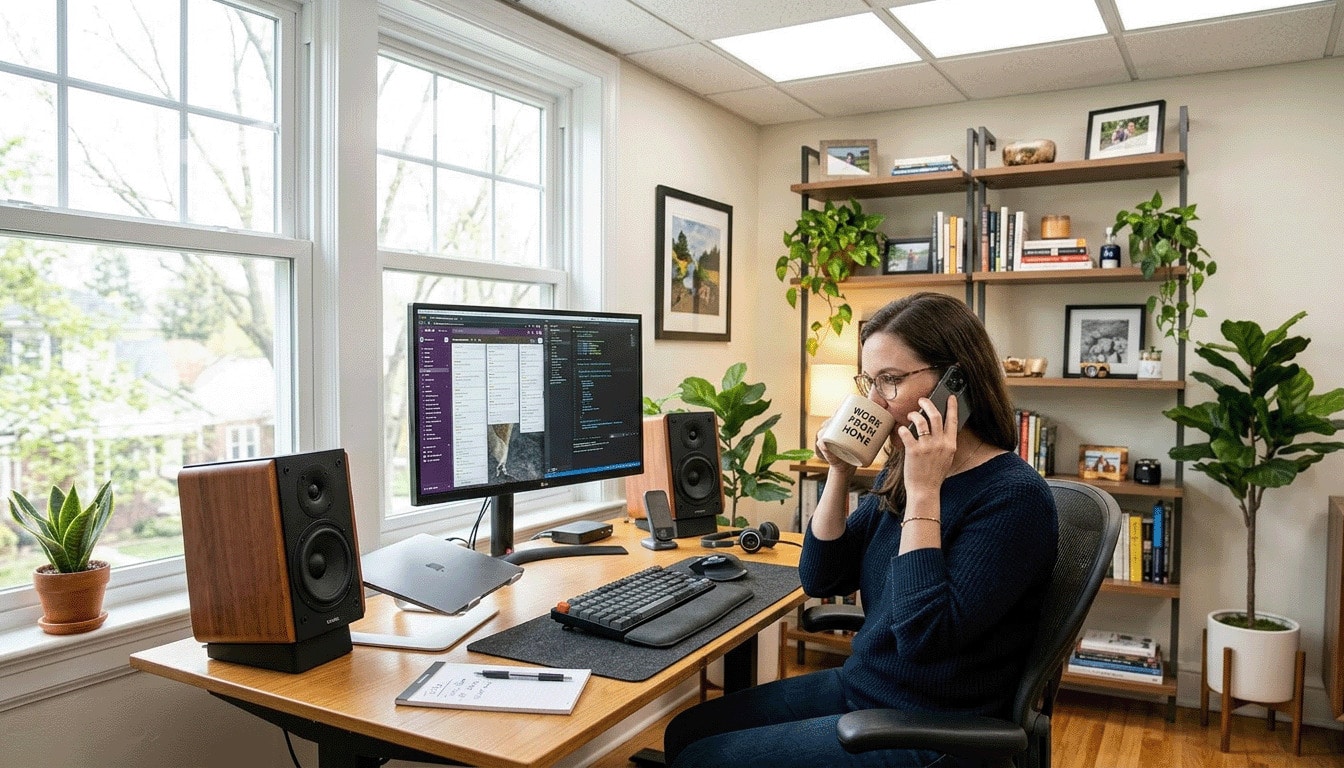
Edit Full screen View original Delete A modern remote workstation scene featuring a sleek, minimalist desk with an ergonomic chair. In the foreground, a large computer monitor displays a vibrant, organized digital workspace, complemented by a stylish keyboard and an ergonomic mouse.
Next to the monitor, a small potted plant adds a touch of green. In the middle ground, a notepad and a high-quality pen lie neatly beside a wireless charging pad for smartphones. The background features a well-lit home office with soft, natural light streaming through a window, creating a calming atmosphere.
The overall color palette is muted, with soft grays and warm wood tones promoting a focused, professional vibe. The image is captured from a slightly elevated angle to emphasize the desk layout and workspace efficiency.
Add a second monitor or go ultrawide for less window juggling
Screen space is often the first challenge in a home office. Moving from one to two screens can make a big difference. Ryan Peterman found his productivity jumped when he went from one to two monitors, but not as much when he added a third.
Many people prefer using a single ultrawide screen and a vertical display for chat and documents. The BenQ GW2786TC is a good choice for a 27-inch screen. It supports VESA mounting and can swivel to portrait mode, it’sgh it’s 1080p.
For better contrast and media work, the Dell 32 Plus 4K HDR QD-OLED is great. It can get up to 1,000 nits peak brightness and has deep blacks. The Dell UltraSharp 32 4K Thunderbolt Hub Monitor is another option with an integrated hub and a built-in KVM switch.
Some prefer a tall workspace over a narrow screen. The LG DualUp 28-inch 2K has a 16:18 aspect ratio. It includes an arm mount with a USB-C port.
For a desk that works for both work and play, the AOC Q27G4ZD QD-OLED is a good choice. It has 1440p and a 240-Hz refresh rate. Portable displays are also great for keeping your workspace consistent when you’re on the move.
- Plugable 15.6-inch USB-C portable monitor: folio kickstand, 60-Hz 1080p IPS, three USB-C ports with passthrough charging.
- Lenovo ThinkVision M14t Gen2: 14-inch IPS, 2K resolution, touchscreen (best with Windows/Chromebooks), two USB-C ports with passthroughs for charging.
- Mobile Pixels Duex Plus: magnet-mounted slide-out 13.3-inch 1080p, handy for keeping Slack or a browser visible, but adds bulk.
- Espresso 17 Pro: 17-inch 4K portable touchscreen with 100% DCI-P3 color, magnetic stand, and Espresso Flow software for touchscreen support on macOS.
Use a laptop stand when working from home (or moving around the house)
Remote work means moving around. A laptop stand keeps your screen at a good height. It helps you stay comfortable.
- Branch Adjustable Laptop Stand: lifts to 7 inches, sturdy and collapsible, though it can be a bit tough to adjust.
- Rain Design mStand: single-piece aluminum with a wide base, stable but not very adjustable.
- Logitech Casa Pop-Up Desk: travel-friendly case that becomes a stand, with a compact Bluetooth keyboard and trackpad.
- Nnewvante Bamboo Laptop Stand: couch/bed-friendly, adjustable-angle, a partial flat surface for a drink, plus a small drawer for cables.
Cut cable clutter with a USB-C hub or docking station
Adding devices can cause cable chaos. A hub or dock keeps things organized. It makes cleaning easier.
- Plugable USB-C 9-in-1 Hub: up to 140 watts of power passthrough and support for a second screen.
- Monoprice 5-in-1 USB-C Hub: three USB-A ports plus HDMI, up to passthroughs-through charging.
- Ugreen Revodok Pro 211 Docking Station: aluminum block with braided cable, built for multi-monitor setups.
- Plugable USB-C Dual HDMI Docking Station: a practical pick for multi-screen workflows.
Monitor arms and desk shelves can hide cables. They free up space in your remote office. Try the Workstream by Monoprice Single Monitor Arm, the Ergotron LX, and the Vivo Dual Monitor Desk Mount.
Keep planning visible with a whiteboard or chalkboard surface
A whiteboard or chalkboard makes planning visible. It’s great for outlining and mind-maps.
Painting a door with Rust-Oleum Chalkboard Brush-On is a space-saving idea. It turns a blank surface into a large planning area. It’s easier to scan than a small laptop screen.
- Lockways Magnetic Dry Erase Board: scratch-resistant and easy to wipe clean.
- VIZ-PRO Magnetic Whiteboard: mounts vertically or horizontally with a durable magnetic surface.
- ULINE Standard Melamine Dry Erase Board: smooth write-and-wipe feel with a nonmagnetic melamine surface.
Audio, lighting, and video upgrades that improve work-from-home calls

In a remote office, how you appear and sound matters a lot. Clear voice, calm lighting, and steady video make meetings run smoothly. These upgrades also reduce fatigue, which is key for long remote work sessions.
Get lighting right to reduce eye strain and improve focus
Daylight boosts mood and energy. Opening blinds in your home office makes faces look natural on camera. Dark rooms make screens the main light source, causing eye strain.
Good lamps create consistent lighting. The Xiaomi Mi LED Desk Lamp adjusts brightness and color, matching macOS Night Shift at night. For soft, warm light, the ZEEFO Simple Table Lamp with Fabric Shade (about $20.99) is a better value than Target’s Desk Task Lamp (about $29.99), which offers practical adjustability. Elm’s Curvilinear Mid-Century Table Lamp (about $129) has a tilting head for directing light.
Improve focus with speakers or headphones for consistent sound
Sound affects how fast and well you work. A University of Miami study showed music improves work quality and speed. A small speaker can block out street noise and keep your work environment consistent.
The Sonos Play:1 (about $149) fills rooms with sound, controlled in the Sonos app or with Alexa. Budget options like the Anker Soundcore Portable Bluetooth Speaker (about $26.99) are clear and light. The JBL Flip 4 (about $99.99) lasts up to 12 hours on a charge. In shared spaces, headphones like the Bose QC35 keep calls private and avoid Bluetooth drops.
Sound more professional with a simple USB microphone
A USB mic is a quick way to improve your virtual workspace. The Blue Yeti (often around $100) is easy to use and makes voices sound fit. It’s a condenser mic that picks up sound without needing to be right at your mouth, keeping your desk tidy.
Upgrade video calls with the camera + capture card” approach (optional)
Lighting is more important than camera specs for video quality. But a good camera can make a big difference, making your video look sharp. A reused mirrorless body like the Sony a6300 can outperform a basic webcam, making your video look professional.
The setup is usually a simple three-part checklist:
- Dummy battery for wall power (often around ~$24)
- Capture card to convert HDMI to USB, such as Elgato Cam Link 4K (around ~$94)
- Camera stand or mount, such as Elgato Master Mount L (around ~$45)
Lens choice affects how your face looks on screen. A wider lens is good for tight rooms, while a softer background blur makes your home office look cleaner. For more on lenses, check out a camera lens guide.
Remote Work Setup Conclusion
As U.S. companies adjust to hybrid schedules, a remote work setup impacts how we feel and work. Setting up a remote office can be done with a few smart changes, not a lot of spending. A well-designed remote workstation is more important than fancy gadgets, which are often ignored.
Start with ergonomics for the best results. An ergonomic chair and the ability to switch between sitting and standing can greatly reduce pain. A 2003 study found that ergonomic chairs can increase productivity by 17.7%, underscoring their value.
Small tools can also make a big difference. ChevronTexaco saw a 44% decrease in risk levels with ergonomic accessories. Upgrades like better keyboards and mice can also help. Adding a second monitor can reduce the need to switch between windows, but going from two to three monitors may not be as beneficial.
Nowadays, call quality is crucial when working from home. Better lighting can help reduce eye strain. Clear audio from speakers or headphones is also vital for meetings.
Even a simple USB mic can make a big difference in how voices sound. Some jobs might need fancy camera setups. But the main thing is to invest in what you use every day, not what you might ignore.
Remote Work Setup FAQ
What remote work setup upgrades actually moved the needle after the 2020 work-from-home shift?
Why do many remote workers struggle to switch” from “ho”e mo”e” to “wo”k mode?
Is a dedicated home office worth it if someone works remotely only a few days a week?
What does a budget within intention look like for setting up a remote office?
What’s a realistic example of an upgraded remote work setup and its cost?
What should remote workers avoid overbuying?
Why do ergonomics matter so much in a home office?
Do ergonomic chairs really improve productivity?
Which ergonomic chairs are popular across different budgets for work-from-home use?
What are credible budget chair options for a remote workstation?
Is buying a used Herman Miller Aeron a smart move for a home office?
Why do many remote workers struggle to switch” from “ho”e mo”e” to “wo”k mode?
Is a dedicated home office worth it if someone works remotely only a few days a week?
What does a budget within intention look like for setting up a remote office?
What’s a realistic example of an upgraded remote work setup and its cost?
What should remote workers avoid overbuying?
Why do ergonomics matter so much in a home office?
Do ergonomic accessories improve outcomes?
Which keyboards and mice are practical upgrades for a remote workstation?
What’s a proven example of a keyboard change improving typing performance?
How can remote workers build Movement breaks into the day without losing momentum?
What’s a low-friction way to make stretching more consistent in a home office?
Which yoga and movement gear do remote workers actually buy?
Are companies treating yoga as a serious workplace wellness tool?
How can a voice assistant help a virtual workspace feel more organized?
What monitor upgrade tends to deliver the biggest productivity jump for remote workers?
What’s a practical monitor layout for a remote work setup in 2025?
Which monitors are strong picks for a home office, and why?
Which portable monitors work well for remote work outside the home office?
Why are laptop stands useful when remote work shifts around the house?
Which laptop stands are solid for work-from-home and travel?
Why do USB-C hubs and docking stations matter in a remote workstation?
Which USB-C hubs and docks are reliable for a home office?
What monitor arms and desk shelves help create a cleaner home office?
Why do whiteboards and chalkboards matter in a virtual workspace?
What are good whiteboard and chalkboard options for a remote office?
Why do audio, lighting, and video upgrades matter more now in hybrid work?
What’s the simplest lighting upgrade for a work-from-home setup?
Which desk lamps work well for home office lighting?
Do speakers or headphones really help focus in a remote work setup?
Which speakers and headphones are popular for telecommuting?
When does upgrading the camera make sense for video calls?
How can a remote worker reuse a DSLR or mirrorless camera for calls?
What “friction reducers” make a remote workstation feel fast and calm day-to-day.
What’s the best hierarchy of upgrades for a remote work setup?
How can someone keep a remote office budget under control without sacrificing results?
Tech Links
- Best iPhone 17 Charging Setup for Home, Car, and Travel.
- Best iPhone 17 Cases Under $50 (Budget Picks That Protect)
- Best Portable Power Stations for Home Backup (2026 Guide)